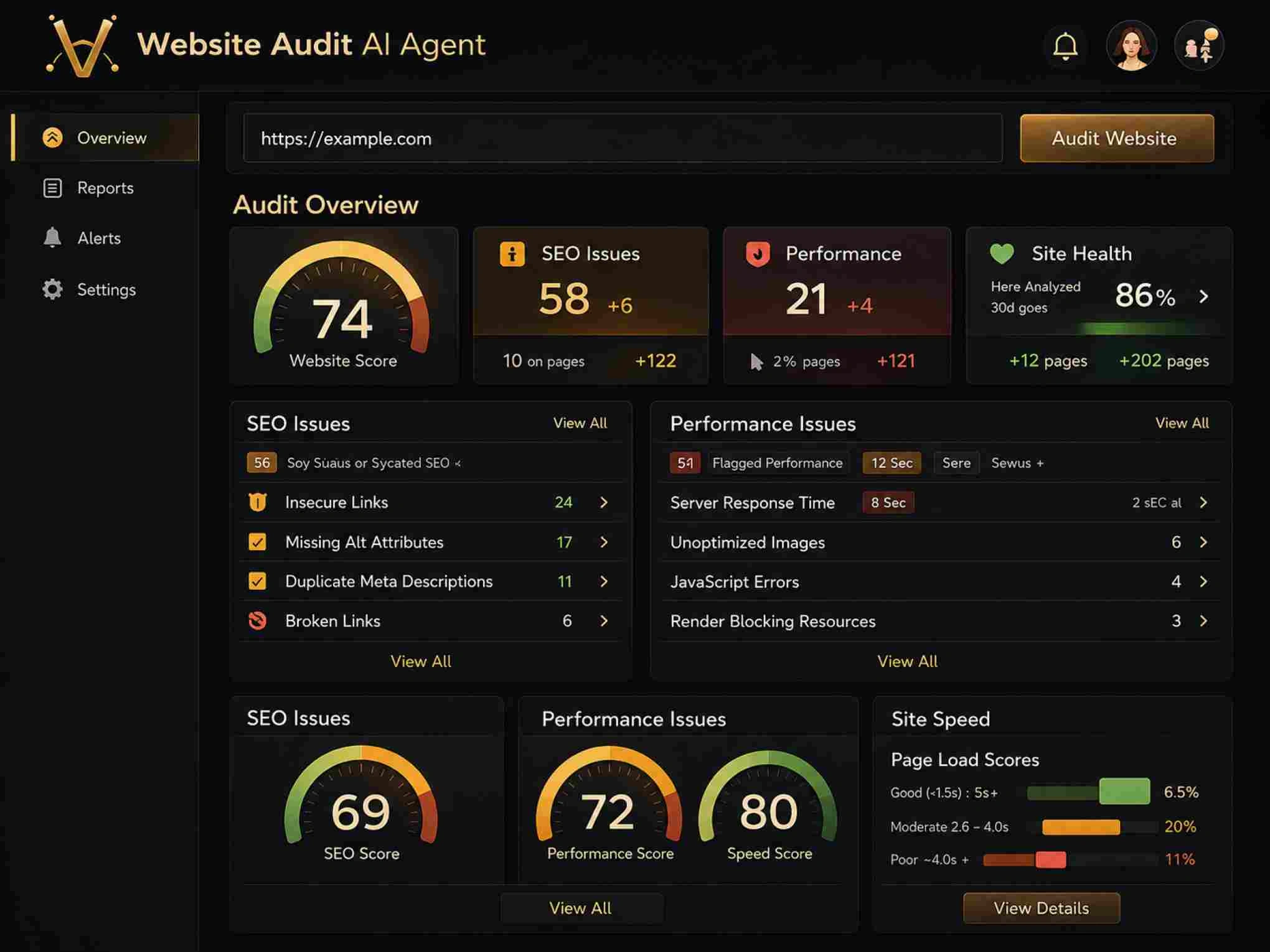
Knowing how to scan your website for technical SEO problems means going beyond surface-level checks, and your XML sitemap is one of the first places to look. A sitemap acts as a roadmap for search engines, telling them which pages exist and which ones matter most. When that roadmap contains errors, search engines can miss important pages, waste crawl budget on irrelevant URLs, or index content you never intended to be public.
For digital marketers and webmasters, a broken or poorly configured sitemap can quietly undermine months of content and optimization work. The good news is that checking your sitemap is straightforward once you know what to look for. This guide walks through four practical steps to audit your XML sitemap and fix the most common problems that hurt search visibility.
Key Takeaways
- Your XML sitemap should only contain indexable, canonical URLs returning 200 status codes.
- Remove redirected, noindexed, and orphaned URLs from your sitemap immediately.
- Validate your sitemap format against the official XML sitemap protocol before submitting.
- Cross-reference your sitemap with Google Search Console's index coverage report regularly.
- Automate sitemap audits using dedicated tools to catch issues before they compound.
1. Locate and Validate Your XML Sitemap
Finding Your Sitemap URL
The first step is to confirm that your sitemap actually exists and is accessible. Most websites host their sitemap at /sitemap.xml, but some CMS platforms generate them at different paths or split them into sitemap index files. Check your robots.txt file; it should contain a Sitemap: directive pointing to the correct URL. If there's no reference there, try appending /sitemap.xml, /sitemap_index.xml, or /wp-sitemap.xml (for WordPress) to your domain.
If you can't find a sitemap at all, that's a problem worth fixing immediately. Search engines can crawl your site without one, but a sitemap gives you explicit control over which URLs get discovered and prioritized. For a broader look at how to scan your website for technical SEO problems beyond just sitemaps, our guide to scanning your website for technical SEO issues covers the full audit process. Once you've located the file, open it in a browser to confirm it renders as valid XML.
Validating XML Structure
A sitemap that contains malformed XML won't be parsed by search engines at all. Common formatting mistakes include missing closing tags, incorrect namespace declarations, and encoding errors from special characters like ampersands. Use a free XML validator or paste the sitemap URL into Google Search Console's sitemap report to catch structural problems. The protocol requires specific elements — each URL must be wrapped in <url> tags with a <loc> child element at a minimum.
Always check that your sitemap uses UTF-8 encoding and that special characters in URLs are properly escaped with XML entities.
Size limits matter too. A single sitemap file can contain a maximum of 50,000 URLs and must not exceed 50MB uncompressed. If your site is larger, you need a sitemap index file that references multiple individual sitemaps. As outlined in this sitemap best practices guide, splitting sitemaps by content type — pages, posts, products, images — makes ongoing management far easier and helps you isolate problems when they appear.
2. Check Every URL for Status Issues
Spotting Redirects and 404s
Every URL in your sitemap should return a 200 HTTP status code. That sounds obvious, but in practice, sitemaps accumulate dead URLs over time as pages get deleted, moved, or restructured. A sitemap full of 301 redirects and 404 errors signals to Google that your site isn't well-maintained, and it wastes your crawl budget on pages that don't exist. Crawl your entire sitemap with a tool that checks response codes for every listed URL.
When you find broken links within your sitemap, the fix depends on context. If a URL redirects to another page, replace the old URL in the sitemap with the redirect target. If a URL returns a 404, remove it entirely. This cleanup process is closely related to the broader task of finding and fixing broken links on your site, since many of the same URLs will appear in both your sitemap and your internal link structure.
Never leave 404 URLs in your sitemap. Google may eventually stop trusting the file if too many listed URLs are dead.
Identifying Noindex Conflicts
One of the most counterproductive sitemap errors is including URLs that carry a noindex meta tag or X-Robots-Tag header. You're simultaneously telling search engines "please index this page" via the sitemap and "don't index this page" via the robots directive. Google has stated it will respect the noindex instruction, but the conflicting signals create confusion in your index coverage reports and waste crawl resources.
Audit every sitemap URL and cross-reference it against the page's robots meta tag and HTTP headers. Pages blocked by robots.txt should also be excluded from the sitemap, since Google can't crawl them to discover content anyway. This conflict check is something most site owners skip, but it catches a surprisingly large number of indexing issues on sites with more than a few hundred pages.
| URL Status | Should Be in Sitemap? | Action Required |
|---|---|---|
| 200 OK (indexable) | Yes | Keep — this is correct |
| 301 Redirect | No | Replace with final destination URL |
| 404 Not Found | No | Remove from sitemap immediately |
| 200 with noindex | No | Remove — conflicting signals |
| Blocked by robots.txt | No | Remove — cannot be crawled |
| Non-canonical URL | No | Replace with canonical version |
3. Audit Sitemap Content Quality
Canonical URL Mismatches
Beyond status codes, the URLs in your sitemap should match their canonical tags exactly. If a page at /products/widget has a canonical tag pointing to /products/widget/ (with a trailing slash), Your sitemap should list the canonical version. When these don't match, search engines have to reconcile conflicting information, which can delay or prevent indexing. This mismatch is one of the most overlooked sitemap problems, particularly on large e-commerce sites with thousands of product variants.
Protocol consistency matters equally. If your site runs on HTTPS, every sitemap URL should use HTTPS. Mixed protocol references some HTTP, some HTTPS, creates duplicate content signals, and splits link equity between two versions of the same page. Run a simple find-and-replace across your sitemap to catch these, or configure your CMS to generate URLs with the correct protocol automatically.
Some CMS plugins auto-generate sitemaps but don't account for canonical tag settings, creating persistent mismatches you'll need to fix manually.
Missing High-Value Pages
A sitemap audit isn't just about removing bad URLs — it's also about confirming that your most important pages are actually included. Compare your sitemap against your site's top-performing pages in Google Analytics or Search Console. If a page that drives significant traffic or conversions is missing from the sitemap, it may not be getting crawled as frequently as it should. This is especially common after site migrations or redesigns, where the sitemap was regenerated from scratch.
"The best sitemap isn't the longest one — it's the one that contains exactly the pages you want indexed, and nothing else."
Orphaned pages deserve special attention here. These are pages that exist on your server but aren't linked from anywhere else on your site. Without internal links or sitemap inclusion, search engines may never discover them. Cross-referencing your sitemap URLs against a full site crawl reveals these gaps. The ideal sitemap reflects your site architecture accurately every indexable page present and every non-indexable page absent.
4. Automate Ongoing Sitemap Monitoring
Choosing the Right Tools
Manual sitemap checks work for small sites, but anything above a few hundred pages demands automation. Dedicated crawling tools like Screaming Frog, Sitebulb, and Ahrefs can parse your sitemap, check every URL's status code, and flag conflicts with canonical tags and robots directives in minutes. For those evaluating options, our roundup of the best technical SEO tools for website scanning covers the top choices in detail. The right tool depends on your site's size and your budget, but even free-tier options catch the most damaging issues.
Google Search Console remains the single most important tool for sitemap monitoring because it shows you exactly how Google interprets your submitted sitemap. The index coverage report breaks down submitted URLs into categories: valid, valid with warnings, error, and excluded. When you see a spike in excluded URLs that were submitted via sitemap, something has changed: a plugin update, a migration, a CMS configuration shift — and you need to investigate immediately.
Setting Up Regular Checks
Schedule sitemap audits as part of your regular site maintenance cycle. Monthly checks work for most sites. High-traffic e-commerce sites or publishers adding content daily should check weekly. Set up alerts in Search Console for indexing anomalies, and configure your crawling tool to run automated scans on a schedule. The goal is to catch problems within days, not months. A sitemap issue that persists for weeks can affect hundreds of pages' visibility before anyone notices.
Performance monitoring connects directly to sitemap health. When search engines waste crawl budget on broken sitemap URLs, they may crawl your important pages less frequently, which can indirectly affect load performance and indexing speed. If you're also working on site speed, our guide to speeding up your site with Core Web Vitals fixes pairs well with sitemap optimization, both of which reduce friction between your site and search engines. Together, clean sitemaps and fast pages create the best conditions for efficient crawling and indexing.
Document your audit findings each time you run a check. Tracking the number of errors over time shows whether your sitemap hygiene is improving or degrading. A simple spreadsheet tracking date, total URLs, errors found, and errors fixed gives you accountability and makes it easier to spot patterns like a particular CMS update consistently introducing redirect URLs into the sitemap.
After every major site change — migration, redesign, plugin update — run an immediate sitemap audit rather than waiting for the next scheduled check.
Frequently Asked Questions
?How do I find my sitemap if it's not at /sitemap.xml?
?Should I remove redirected URLs from my sitemap or just leave them?
?How often should I audit my XML sitemap for technical issues?
?Can a sitemap cause pages to get indexed that I don't want indexed?
Final Thoughts
Your XML sitemap is one of the few direct communication channels you have with search engines, and treating it carelessly means leaving indexing to chance. The process outlined above locates, validates, audits URL statuses, checks content quality, and automates monitoring, covering the issues that affect real sites every day.
None of these steps requires advanced technical skills, just discipline and the right tools. Make sitemap auditing a regular habit, and you'll catch problems that many competitors never even notice.
Disclaimer: Portions of this content may have been generated using AI tools to enhance clarity and brevity. While reviewed by a human, independent verification is encouraged.